Getting started
Navigating operator admin
Operator admin has a fixed dark sidebar on the left and a scrolling work area on the right. The sidebar stays in place as you scroll a long page, so the menu is always one click away.
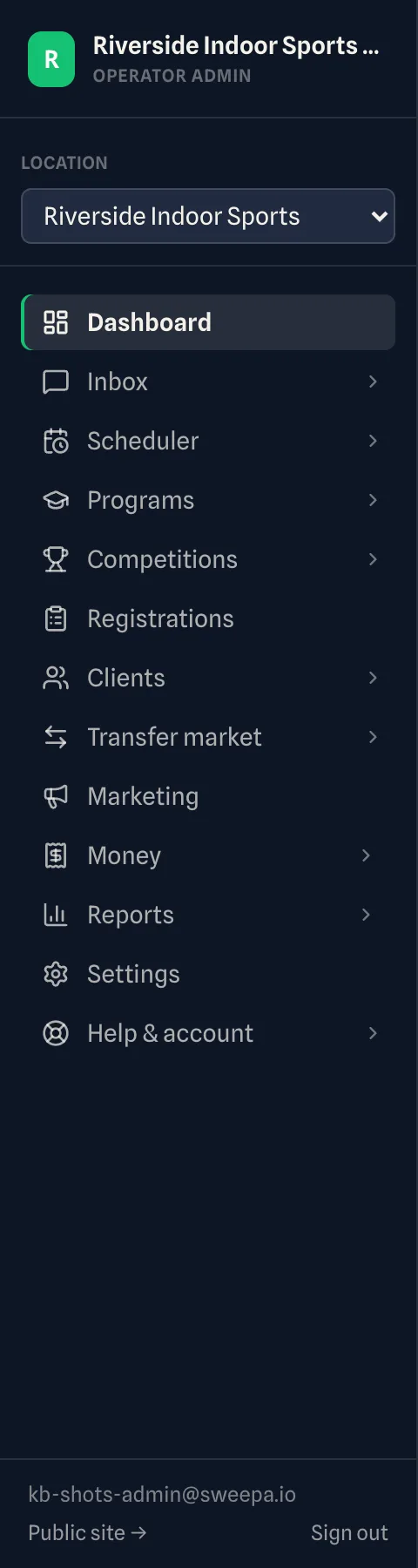
The sidebar
From top to bottom, the sidebar shows:
- Your venue — your logo (or initial) and name, with the Operator admin label underneath, and the Collapse sidebar button beside them.
- Location selector — if you run more than one location, switch the active one here, or choose All venues. Day views and the scheduler show the selected location.
- Menu — your pages, as a short list of top-level rows (see below).
- Footer — Search pages…, your sign-in email, a Public site → link that opens your live venue site in a new tab, and Sign out.
Menu sections
Top to bottom: Dashboard, Inbox, Scheduler, Programs, Competitions, Clients, Transfer market, Marketing, Money, Reports, Settings and Help & account.
Rows with an arrow expand to show their pages. Only the section you're in opens by default; the rest stay collapsed. Open another section and the sidebar remembers it on this device. Dashboard and Settings are a single click.
Settings opens the settings hub — grouped panels of settings instead of a long list of sidebar rows. See Finding your way around the admin for the full map, including the location switcher and the phone menu.
Sections and pages your role can't use are hidden, so your menu only shows what you can do. See Roles and permissions.
Knowing where you are
The page you're on is highlighted in the menu, with an accent bar in your brand colour down its left edge. Nested pages keep their parent item highlighted.
A count badge on Inbox flags threads with new activity.
Hiding the sidebar
Collapse sidebar — the panel button beside your venue name, at the top of the sidebar — folds the sidebar down to a narrow strip of icons. Your pages use the width it gives back. Press the same button, now Expand sidebar, to bring it back; that browser remembers your choice.
Folded, each icon still opens its section. The location switcher becomes a pin icon that opens the same list. Search, your account and Sign out stay at the bottom. On a phone, or in a window under about 900 pixels wide, the menu is always the full list.
Simple or Advanced
The Simple | Advanced switch at the top right of every page sets how much the admin's tables show. Simple keeps lists to the essentials. Advanced adds the filter toolbar, a tick-box column and extra columns. The switch remembers your choice. See Working with lists — filters, search and pages.
Searching for a page
Search pages… at the foot of the sidebar, or ⌘K (Ctrl+K on Windows), searches every page you can reach, settings included. Type a few letters, use the arrow keys, and press Enter.
Words like “cancellation”, “bank details” or “GST” find the settings page they belong to. The last row searches your clients for what you typed.
Related
- Finding your way around the admin — breadcrumbs, tab titles and back links
- Finding your way around the admin — every sidebar row, the settings hub, roles
- Getting started with operator admin
- Roles and permissions
Last updated 17 October 2026