Bookings
Using the scheduler
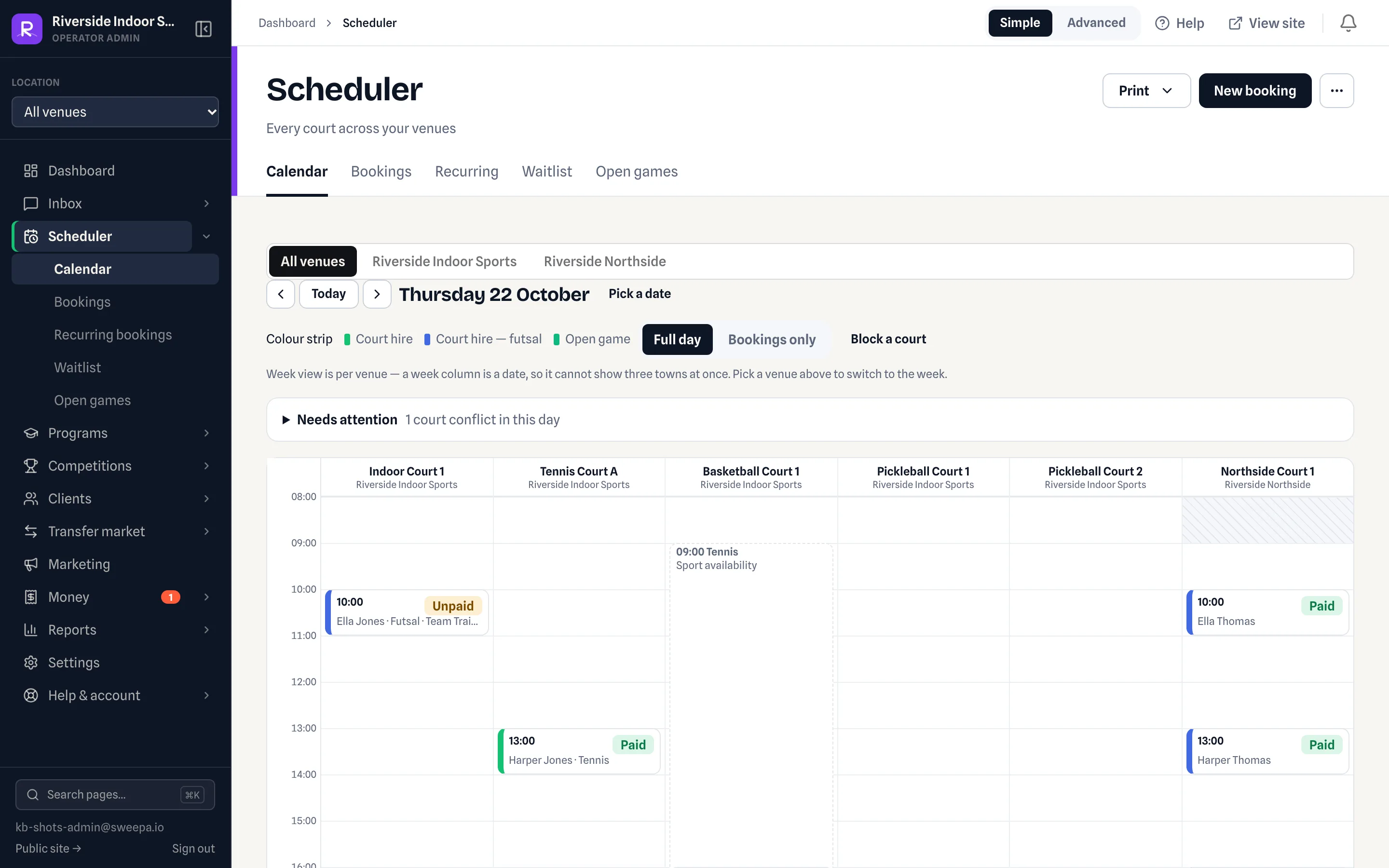
The Scheduler is a day grid of every court and its bookings for one venue. It opens on today's day view, so you see what is happening now; use the Week toggle for the whole week. Click a booking to work on it in the sidebar without leaving the calendar.
What you can do
- See all bookings and fixtures for the selected location and date in one view. Leagues-only venues still get this calendar — it is not bookings-only.
- Spot gaps and double-bookings at a glance. Program sessions appear as blocks alongside court bookings.
- Click a booking to open the sidebar on the right: customer, times, court, payment and invoice. It also lists all of that client's bookings, where you can tick some or all and pay, invoice, email a pay link or cancel. See Working from the booking sidebar.
- Click a fixture to open the roster rail — each player shows Waiver signed or Waiver not signed, and a note if anyone has not signed the Code of Conduct. Fixture tiles are coral if either team still owes a match fee, and turf if both are paid.
- Click an empty slot, or + New booking at the top, to take a booking in a modal on this page. The older
/admin/bookings/newpage still works if you land there from a bookmark. - Edit layout (day view) lets you drag bookings, fixtures and program sessions. Overlaps are allowed while you swap; Confirm writes the new times once nothing clashes.
Taking payment from the sidebar
Open a booking and press Take payment. The chips are your venue's accepted payment methods:
- Saved card shows when the client has a card on file. Press Charge a different card to use another one.
- Charge card shows when no card is saved. The card form opens straight away in the sidebar — key in the card and press Charge. Nothing is created in Stripe until you press it. Tick Save this card for next time if the client wants it kept — saving is optional. To save a card without charging anything, press Save a card for later instead (nothing charged).
- When the session is already on an invoice — a series put on one invoice, invoices you merged, or the client's account invoice — the sidebar names that invoice and takes payment on it. Choose Whole invoice for everything it still owes, or This session only to take just this session: it comes off the shared invoice onto one of its own, and the rest stays owing. A card takes the whole amount chosen; cash or a transfer can be part of the whole invoice — but once part of a shared invoice is paid, its sessions can't be paid one at a time. A month-end statement is always paid whole. Tick Apply account credit first to put the client's credit on the invoice before the rest is taken; a gift voucher is redeemed into their credit on the client's file first.
- Bank transfer is offered wherever your venue accepts transfers. Set Date received to the day the money arrived — it can be earlier than today.
- Apply account credit first only appears when the client has credit to spend.
- For a client billed on account, the sidebar takes the session in full, or it stays on their account invoice. When they have more than one open invoice, Pay full account balance settles all of them in one go.
Card, credit and vouchers need a client on the booking; a booking with no client can only take cash. A party whose balance is on an invoice shows Email pay link and Open invoice instead, so the balance is only collected once.
Changing a booking from the sidebar
- Add client — names a walk-in that was booked without one.
- Edit booking — change the court, sport, date, start and end, price or notes, then press Save changes. Changing the end re-prices an unpaid booking from the hourly rate. A desk edit is checked for clashes with other bookings and program sessions, not against opening hours or sport hours.
- Notify customer of the new time (email / SMS) — the customer hears about an edit only when this box is ticked. Your venue decides whether it starts ticked.
- Refund payment — on a paid booking, opens the booking's own page with its More actions (⋯) button ready; Cancel and refund is in that menu.
- Cancel booking — asks you to confirm, with the same Notify customer (email / SMS) box.
- PIN Code — when Access & Lighting is on and the client has a gate code, read it out at the desk.
- Resend booking confirmation — emails the client the same confirmation they got when the booking was made. See booking confirmations.
Edit booking, Refund payment and Cancel booking show for owners and managers.
Getting back to the calendar
Tasks you finish in the sidebar keep you on the calendar, and the grid updates behind it. If you open a booking's own page from the scheduler, cancelling or moving it there brings you back to that day. On booking, client and invoice pages, the back button goes where you came from — Back to scheduler with the day you were on.
Rain out and print shortcuts
An owner or manager picks the toolbar buttons for each venue in Venue setup → Booking rules → Scheduler shortcuts.
- Rain out — an owner or manager closes the courts for a whole day or part of one. You review a count before anything is cancelled. For managers and owners: Rain out: closing the courts for wet weather.
- Print rosters — prints the coaching rosters, one page per coach: the day in day view, or the week on screen in week view. See Printing coach rosters.
The month calendar
To the left of the grid is a month calendar. Each day is tinted by how busy it is, from pale green (quiet) to dark green (full), so you can spot a quiet week at a glance. Under it is a count of the bookings on the day you have selected.
- Click any day to jump the grid to it.
- The arrows move the calendar's month on its own, without moving the grid. Click a day when you want the grid to follow.
- Today returns to the venue's today.
- The « button collapses the calendar to a thin rail for a full-width grid. Sweepa remembers the choice. On a narrow screen it starts collapsed, and it is hidden on phones.
The tint and the count use live bookings only. Cancellations still show on the grid, struck through, and court blocks still show as blocks, but neither makes a day read as busy.
If Access & Lighting is on your subscription, a strip under the calendar shows today's lights and the main gate — which banks are planned on, and when the gate is in use. A manager or owner connects it under Settings → Access & Lighting.
Banners above the grid
Two banners appear above the grid when there is something to act on. Both follow the day or week you are looking at.
- A violet waitlist banner — customers waiting for a slot on these dates. See The booking waitlist.
- A blue unpaid-checkout banner — online bookings started but not paid for. See Abandoned checkout recovery.
A customer checking out on the grid
While someone is paying online, their slot appears as a dashed sky-blue tile labelled In progress, with the minutes left on the hold. It is read-only: you cannot drag it, and dropping another booking onto that time shows that a checkout is in progress. Use Hold slot on the banner if you want to keep the booking after the hold expires.
All venues
The grid shows the venue selected in the sidebar location switcher; switch it there to see another venue. If you run more than one location, the All venues tab is a venue picker, not one combined calendar. Each venue is a card with that day's events; click Open calendar → to open that venue's grid.
Export a day's bookings
The Bookings day view has an Export CSV button in its header (in More actions, ⋯, on a phone) that downloads the bookings for the date and location you're viewing.
- Change the date or location first to export a different day or venue.
- The file follows the active status segment. Filter to Confirmed, Pending or Cancelled for just those bookings (the filename notes the status), or leave it on All for the whole day.
- Times are in the venue's local timezone. Each row has the start and end time, field, customer name, email, phone, status, payment status and booking type.
Related
- Working from the booking sidebar
- Taking a card payment
- Payment status on the scheduler
- The week grid (v2)
- Match fee invoices
Last updated 22 October 2026